Skip to content
  • Categories
  • Recent
  • Tags
  • Popular
  • World
  • Users
  • Groups
Skins
  • Light
  • Brite
  • Cerulean
  • Cosmo
  • Flatly
  • Journal
  • Litera
  • Lumen
  • Lux
  • Materia
  • Minty
  • Morph
  • Pulse
  • Sandstone
  • Simplex
  • Sketchy
  • Spacelab
  • United
  • Yeti
  • Zephyr
  • Dark
  • Cyborg
  • Darkly
  • Quartz
  • Slate
  • Solar
  • Superhero
  • Vapor

  • Default (No Skin)
  • No Skin
Collapse

Smarthome Forum — Smart Home Community for Matter, Zigbee & HomeKit

S

super-admin

@super-admin
administrators
About
Posts
18
Topics
16
Shares
0
Groups
1
Followers
0
Following
0

Posts

Recent Best Controversial

  • Apple Announces HomeView, a $299 Smart Home Hub
    S super-admin

    Apple has finally released HomeView, a smart home screen it has been working on for years. It was announced on October 13, 2026.

    In simple words: it's a small touchscreen that sits on your kitchen counter (or hangs on your wall) and lets you control your whole smart home, make video calls, play music, and more.

    The big question: is it worth $299? Here's everything you need to know, explained simply.


    Price and release date

    • Price: $299 in the US
    • Pre-orders: open now
    • Arrives in stores: November 13, 2026
    • Europe: not available at launch. Apple's new Siri isn't ready in Europe yet, so HomeView has to wait too.

    What you need to set it up: an iPhone with iOS 27.2 or an iPad with iPadOS 27.2. If your phone can't update to that version, you can't set it up.


    Two versions to choose from

    Both cost the same $299.

    1. Countertop version

    • The screen sits on a round metal base that also holds the speakers
    • You can tilt the screen to get a better view
    • Colors: Silver, Starlight, Rose Pink, Space Gray
    • The power cable matches the color

    2. Wall version

    • Just the screen, no speaker base
    • Hangs flat on your wall
    • Colors: Silver and Space Gray
    • The wall mount is sold separately, so budget extra

    The screen

    • Size: 7 inches, square shape
    • Sharpness: 1088 × 1088 pixels, sharp enough for photos and video calls
    • Brightness: goes very bright for sunny kitchens, and very dim at night so it won't light up your bedroom
    • True Tone: the colors adjust to match the light in your room, so it's easier on the eyes
    • Smart layout: from across the room, it shows big, simple information like the time or weather. Walk closer and it shows more detail.

    The brain: chip and Siri

    • It runs on the A18 chip, the same chip used in the iPhone 16. That means it should feel fast.
    • It uses Siri AI, Apple's new, smarter Siri. You can ask it questions, find music, and control your home just by talking.
    • If you start a conversation with Siri on HomeView, you can continue it on your iPhone, iPad, Mac, or Apple Watch.

    Have you tried the new Siri yet? Better or still frustrating?


    What it does for your smart home

    This is the main job of HomeView: being the control center of your home.

    • Control your devices: turn on lights, lock doors, change the thermostat, set timers. Use your voice or tap the screen.
    • Watch your cameras: see up to 9 security cameras at once on one screen
    • Quick device panel: one tap to reach your most-used devices
    • Works as a home hub: a "home hub" is the device that keeps your automations running and lets you control your home when you're away. HomeView can do this for HomeKit and Matter devices.

    Quick explainer:

    • HomeKit = Apple's smart home system
    • Matter = a newer standard that lets devices from different brands work together

    Apple also announced its own smart door lock, security cameras, and video doorbell at the same time, clearly built to work with HomeView.


    Sound, mics, and camera

    Speakers

    • Both versions have 2 speakers in the screen
    • The countertop version adds a bass speaker in the base for fuller sound
    • Supports Spatial Audio with Dolby Atmos (sound that feels like it surrounds you)
    • It adjusts its sound to fit your room automatically

    Microphones

    • 4 microphones designed to hear you from across the room

    Camera

    • 12MP front camera for FaceTime calls
    • Center Stage: the camera follows you as you move, so you stay in the picture while cooking or walking around

    Safety bonus: HomeView can hear smoke and carbon monoxide alarms and alert you. That's a quietly useful feature, especially if you're not home.


    Made for the whole family

    This is the biggest difference from other smart screens.

    • Recognizes up to 6 people by their face
    • Each person gets their own Home Screen with their own apps and widgets
    • Your private info stays private. Your messages and calendar only show up when HomeView sees your face AND your iPhone is nearby and recently unlocked. Both have to match.
    • Shared stuff for everyone: create shared photo albums and music playlists that the whole family (and even guests) can enjoy

    Apps and everyday use

    Built-in apps include:

    • Calendar, Reminders, Notes
    • Messages and FaceTime
    • Photos (great as a digital photo frame)
    • Music and Podcasts
    • Find My (find your lost iPhone or AirPods)

    Other things it can do:

    • Step-by-step recipes, perfect for the kitchen
    • Watch videos from Apple TV and other compatible apps on your iPhone

    What we still don't know

    Apple hasn't answered these yet:

    1. Is it a Thread border router? (Thread is a fast, low-power way for smart devices to connect. Not confirmed yet.)
    2. Will there be third-party apps? No developer tools have been announced, so there's no HomeView App Store for now.
    3. How does it work with your HomePod or Apple TV if you already use one as your home hub?
    4. When is it coming to Europe?

    If you find answers to any of these, share them below!

    And if you get one after November 13, come back and share your setup. Real experiences will help everyone decide.
    HomeKit & Apple Home apple homeview homekit matter siri

  • How to Convert Normal TV into Smart TV - 3 Easy ways
    S super-admin

    How to Convert Normal TV into Smart TV

    Today people expect something a little smarter with the advent of Smart devices. Traditional TVs are almost on the way out. And also, Smart Televisions are becoming more popular.

    Traditional TVs can only display content from an HDTV antenna, cable, or another A/V source. However, the new TV with powerful processors, and internet access, is more like a smartphone or tablet than the tube TV of the past.

    Smart TVs can connect to the internet and run a variety of applications. Also, Smart TVs are acquiring more Smart Home integration functionality, and some are also the best Smart home gadgets.

    Many TVs are compliant with other connected devices in the home, such as the best Smart lights, best Smart locks , and other sensors, and some TVs also come with a dedicated dashboard for managing all of your connected devices.

    What is the difference between “Traditional Television” and “Smart Television”?

    A Smart TV can link to the internet through Wi-Fi or an Ethernet connection. This Smart Television is equipped with apps that enable users to watch OTT (Over the Top) content. Also, OTT refers to television programs, movies, and other content that is broadcast over a high-speed internet connection without the use of a third-party service provider.

    A traditional TV has an LED or LCD screen and various ports for connectivity. Also, HDMI and USB were most popular, and you can attach your DTH set-top box, DVD player, laptop, and other devices to the HDMI port.

    Moreover, Android TV is a smart TV that has the Android operating system built in. The majority of Android TVs come with Chromecast built-in. And yeah! You can quickly cast your favorite apps from your Android or iPhone.

    Nowadays, there are so many Streaming devices on the market. And yeap! You don't think about whether your TV is a smart TV or a regular TV. Now, you can easily convert your TV into Smart TV.

    What are the Features of Smart TVs, and How do they vary from one another?

    Let’s see some interesting features of Smart TV. Netflix, Amazon Prime Video, Disney Plus, and HBO Max are only a few of the streaming services and content options available on smart TVs. Moreover, there is an increasing number of ad-supported free streaming services like PlutoTV, Tubi, and Crackle.

    This also has popular video-sharing sites, such as YouTube, and their own smart TV apps that are optimized for watching on television and navigating with remote control. Smart TVs are also a perfect way to listen to streaming music with internet radio services like Spotify and Pandora.

    Furthermore, most Smart TVs allow you to access social networking sites such as Twitter and Facebook without a keyboard. One of the biggest trends in smart TVs is the use of voice assistants such as Amazon Alexa and Google Assistant.

    How to Convert Normal TV to Smart TV using Streaming Sticks?

    Sometimes you may be confused about how to convert Normal TV into a Smart TV. Relax; it is just easy. Because, you can convert any TV into a smart TV by using Chromecast, Amazon Fire Stick, or Airtel Xstreme Stick.

    Firstly, you want to find the HDMI port on your television. An HDMI port looks like a small, large slot with a tapered bottom, and HDMI ports are typically found on the back or side of your television set.

    Also, take note of the number next to the HDMI port, as this is the input channel you'll need to use with your Apple TV. Three types of converting methods are mentioned below.

    You can use Chromecast to cast and stream content from OTT apps to your TV

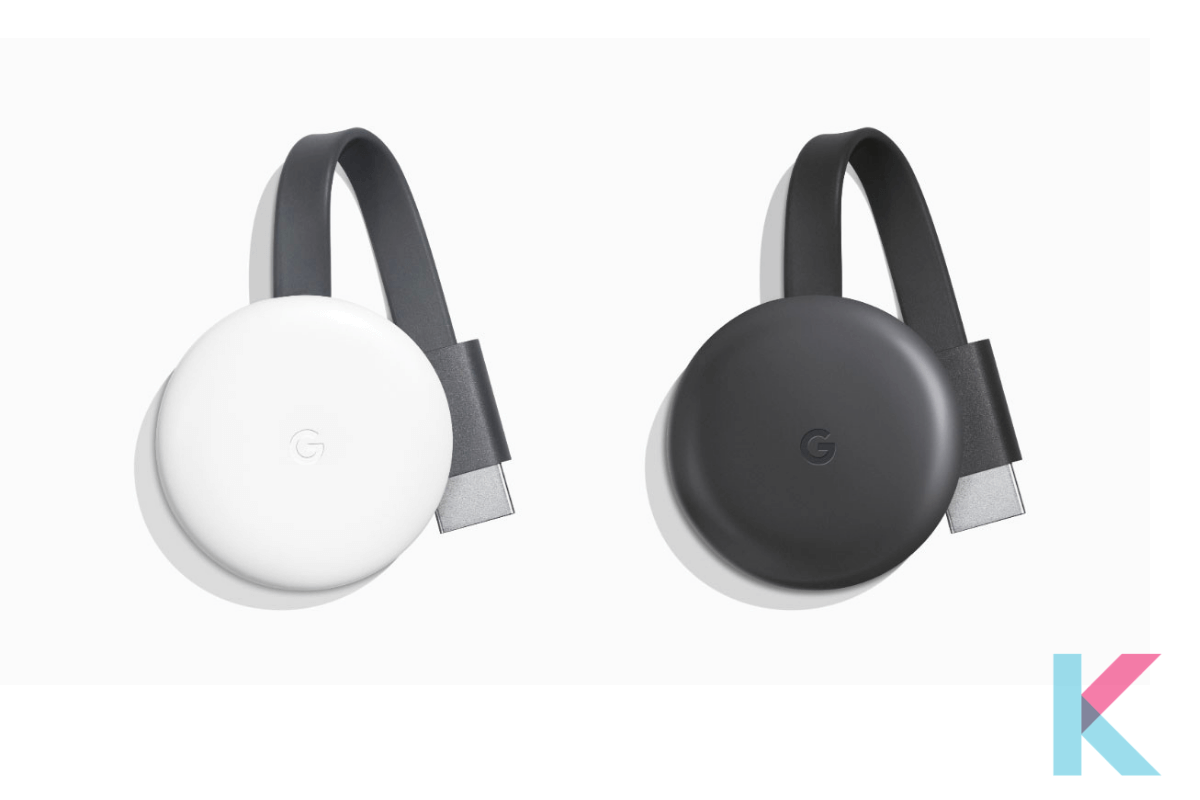
    Google Chrome Cast

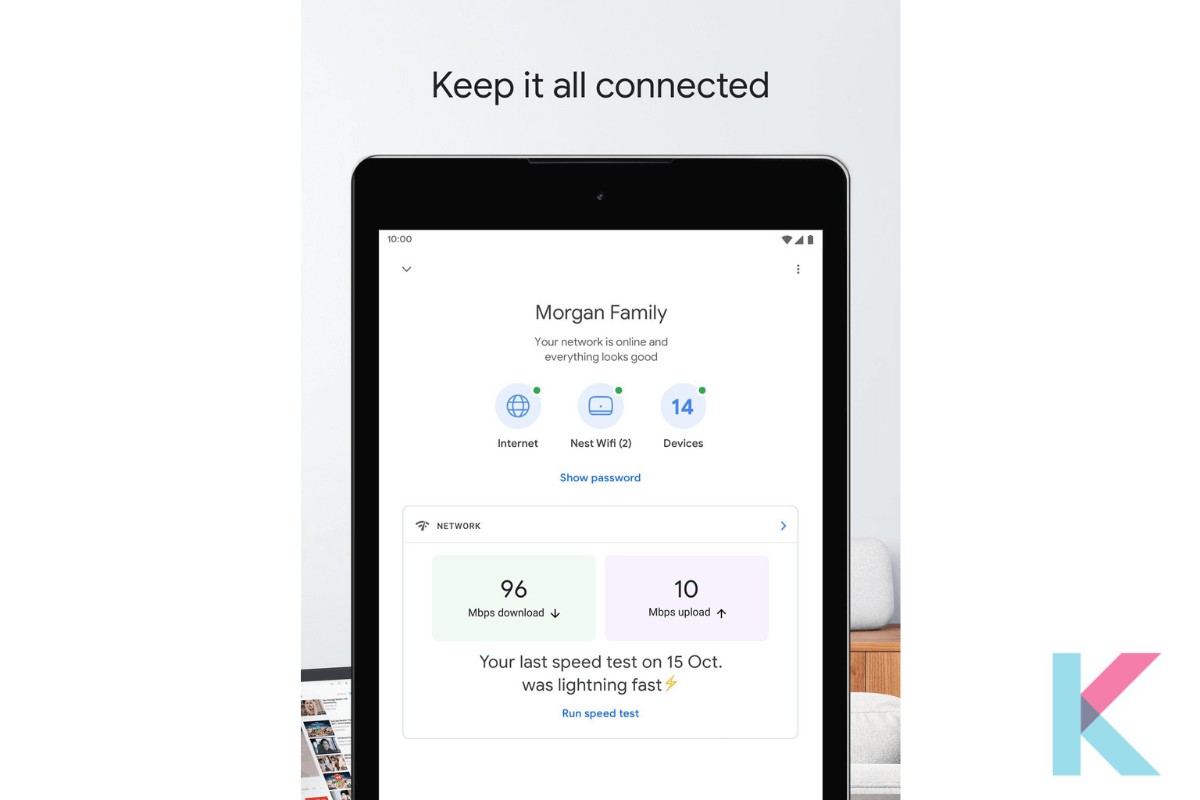
    You can use Chromecast to cast and stream content from OTT apps to your TV. To set up a Chromecast client for the first time, you'll need to download the Google Home app to your Android or iOS device. It is the best way to turn normal TV into Smart TV.

    To use Chromecast, open any app on your phone, such as Hotstar, Voot, Prime Video, Netflix, and so on, and then start casting from the casting icon in the top right corner. Until you start casting video, it will be picked up by the Chromecast system and streamed over Wi-Fi.

    You can also use Chrome and Chromecast to cast from your laptop to your TV. Chromecast Ultra, a 4K-capable Chromecast, was also released by Google.

    Following are the easy steps to convert your odd TV into Smart TV using Chromecast

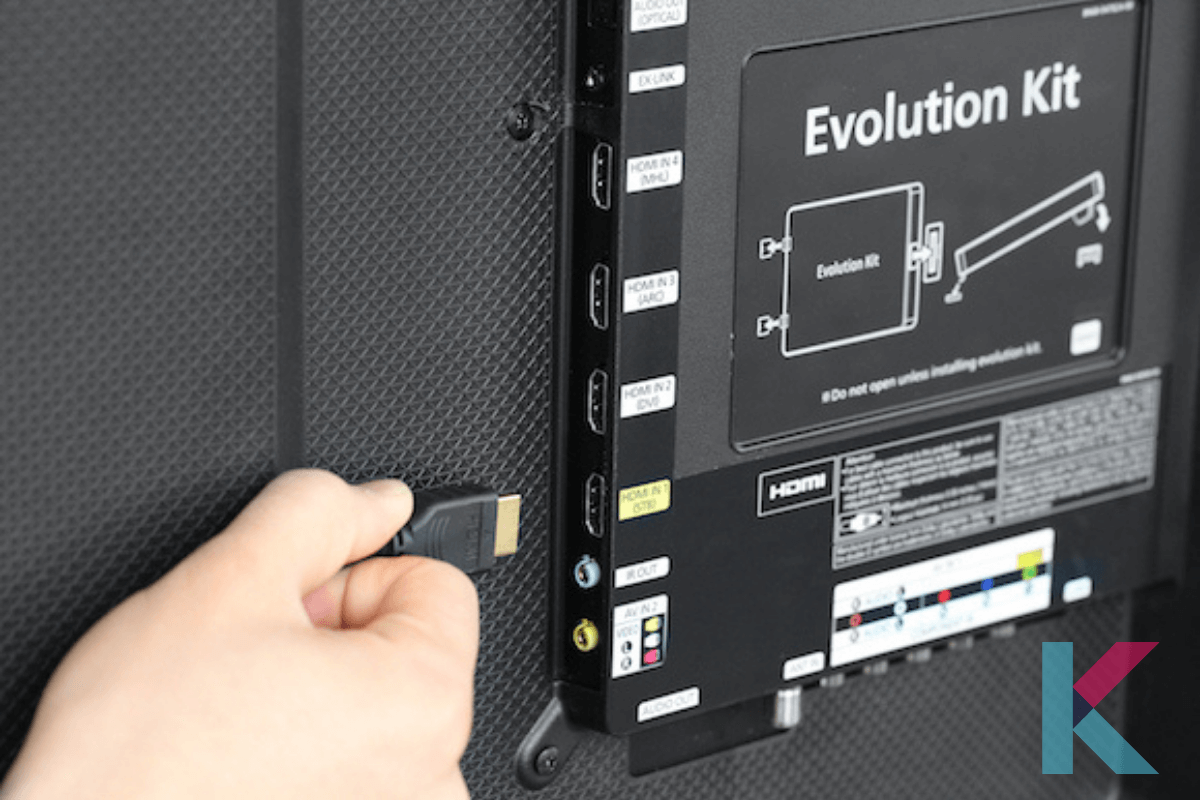
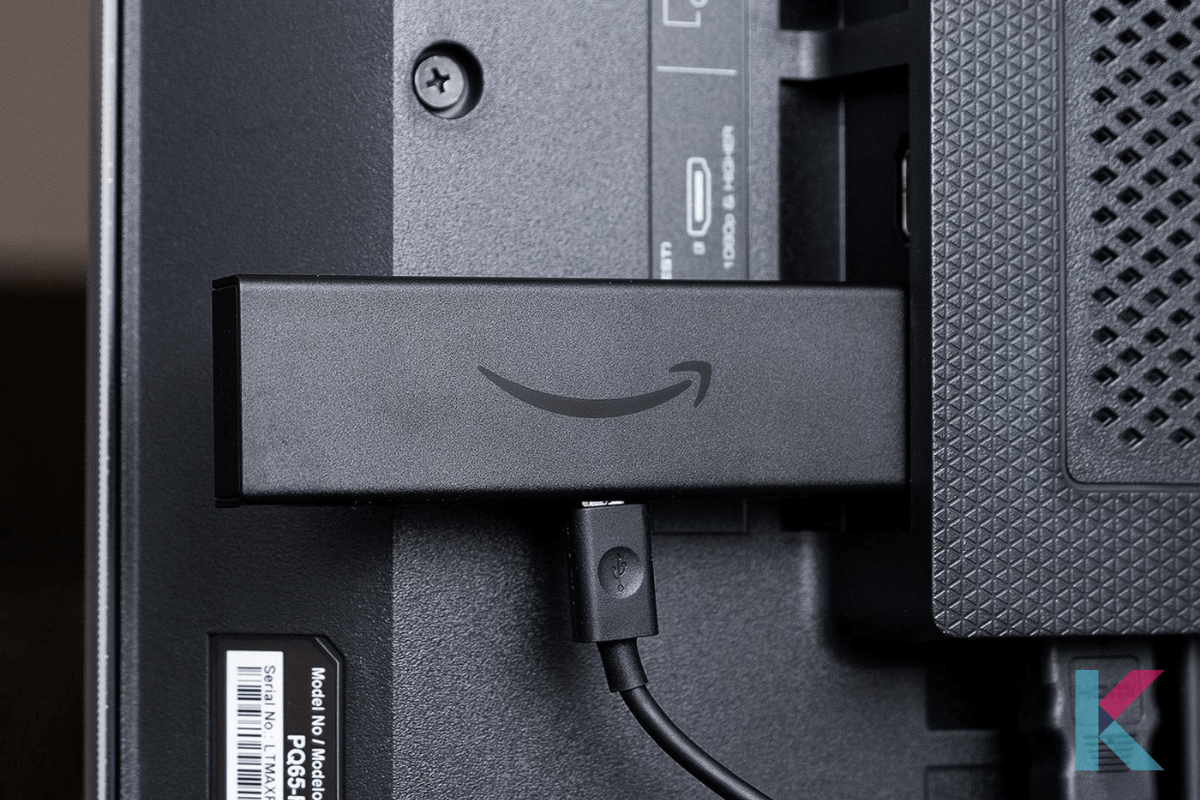
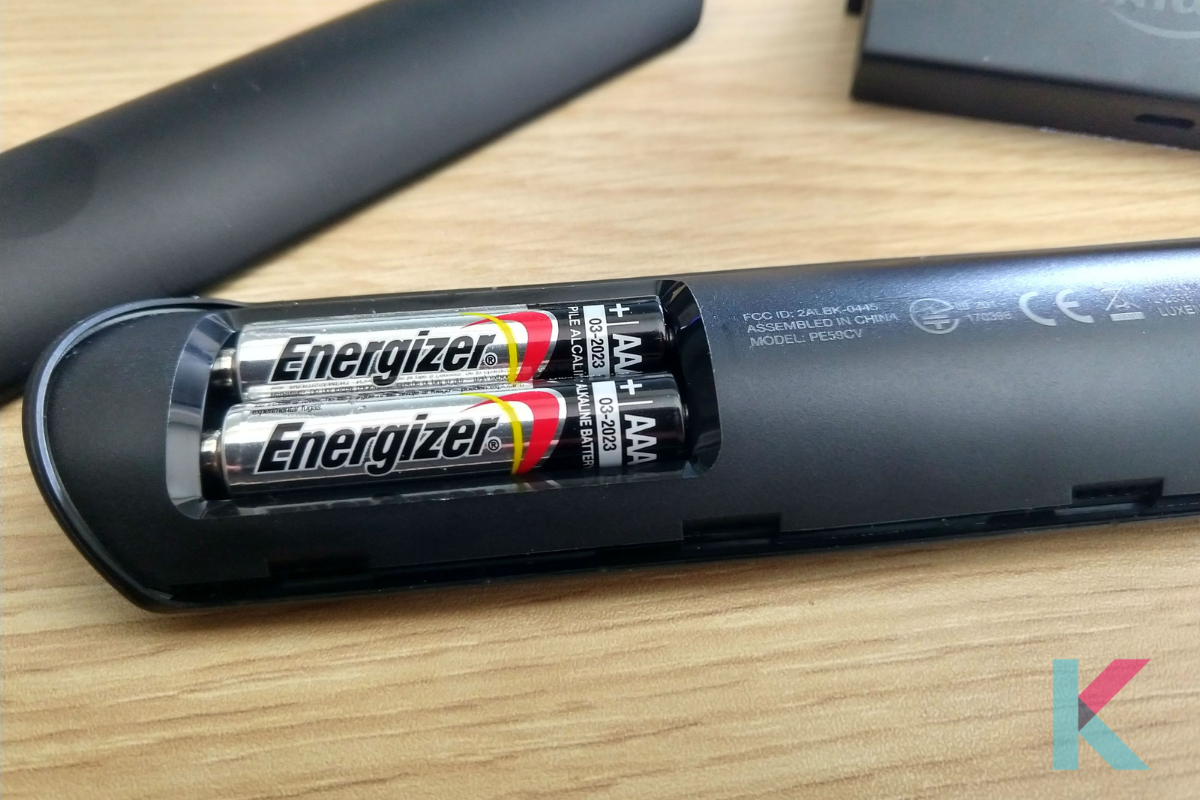
    Step 1 - Connect the Fire Stick to the HDMI port on your TV. And then, connect a power outlet to the Fire Stick and replace the batteries in the remote control for your Fire Stick.

    Connect the Fire Stick to the HDMI port on your TV

    Connect the Fire Stick to the HDMI port on your TV

    Step 2 - Switch on the television and press the power button on your television.

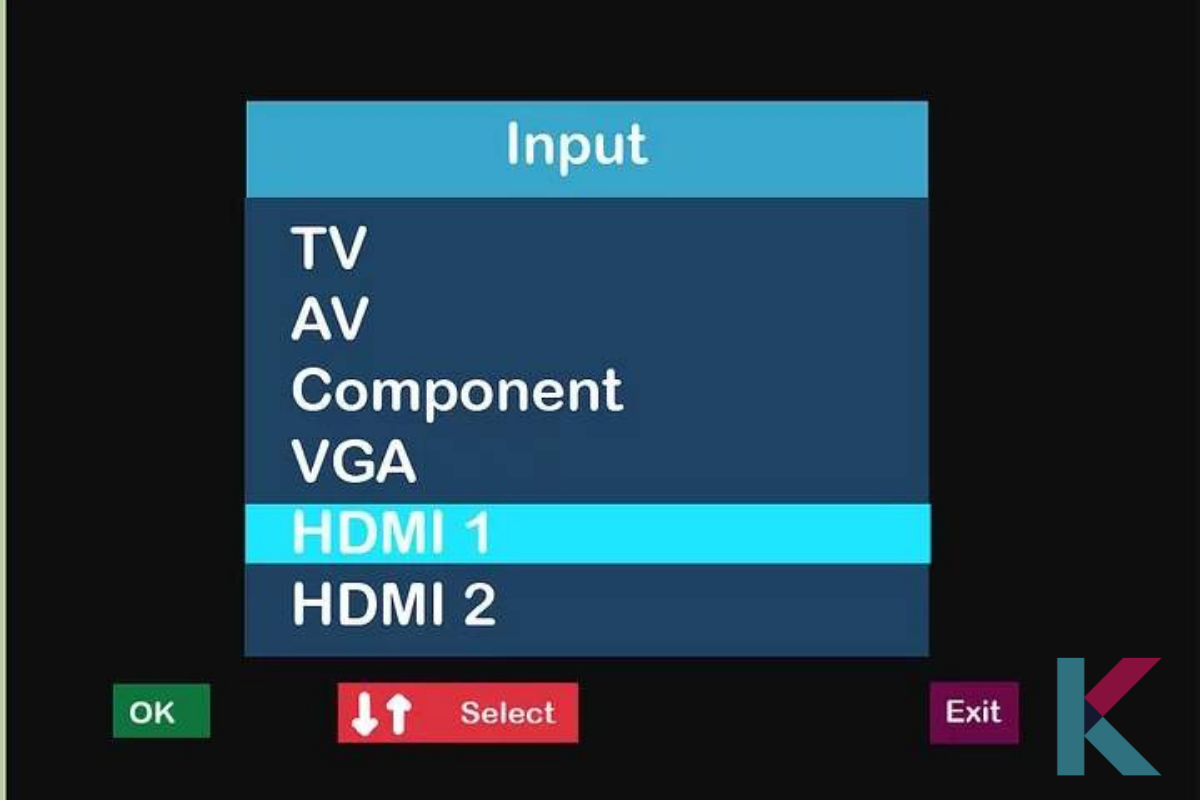
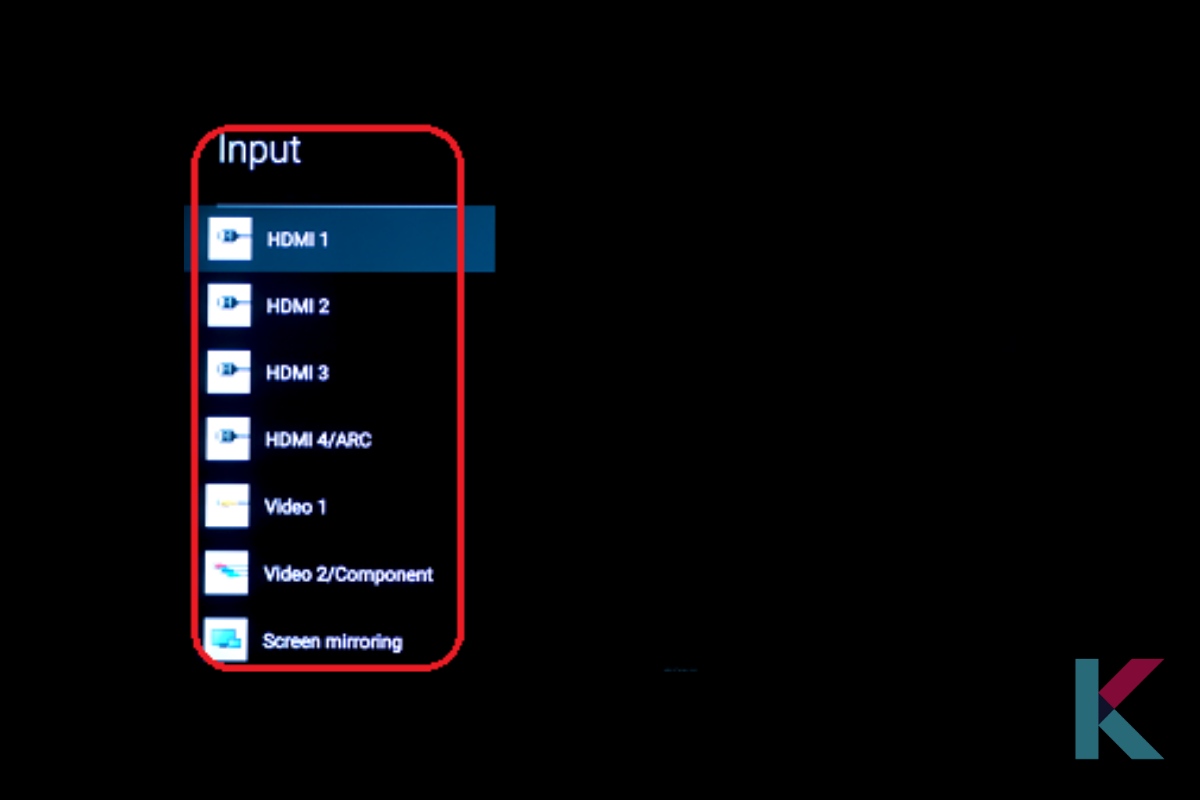
    Step 3 - Change the input on the TV to HDMI. And then, press the "Play/Pause" button

    Change the input on the TV to HDMI. And then, press the "Play/Pause" button

    Change the input on the TV to HDMI

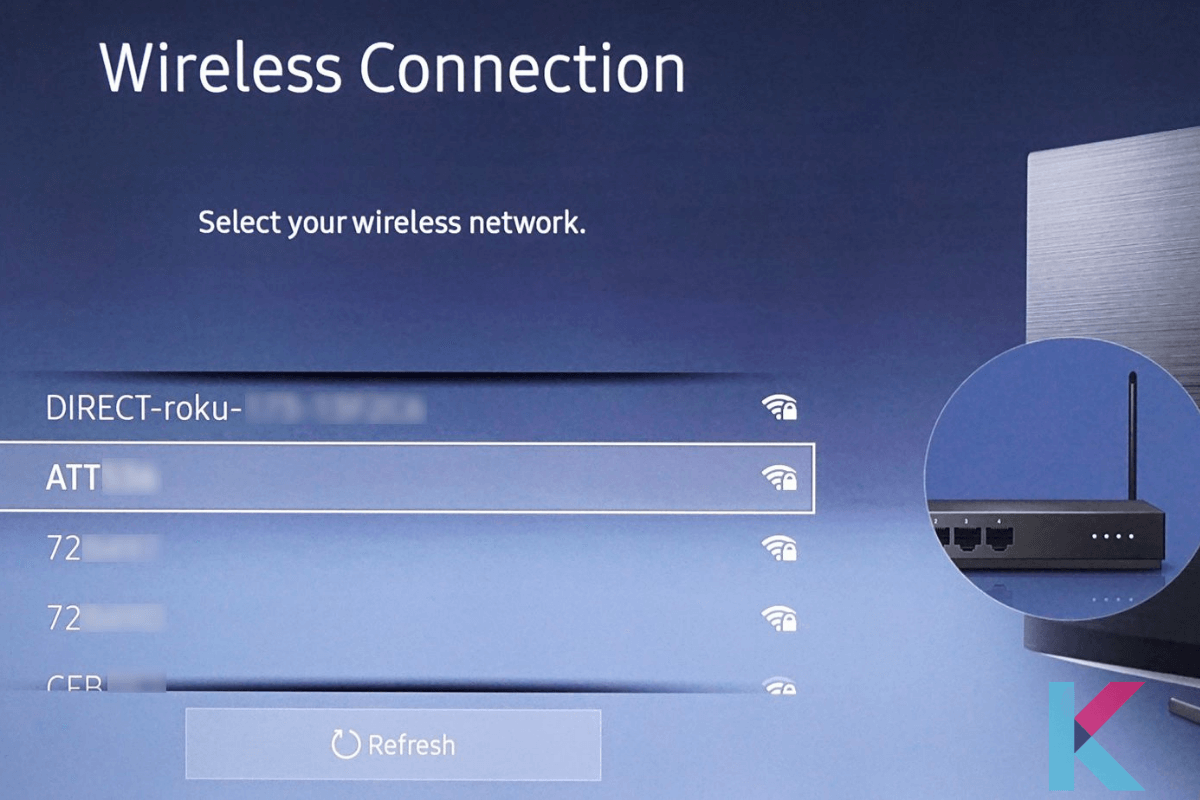
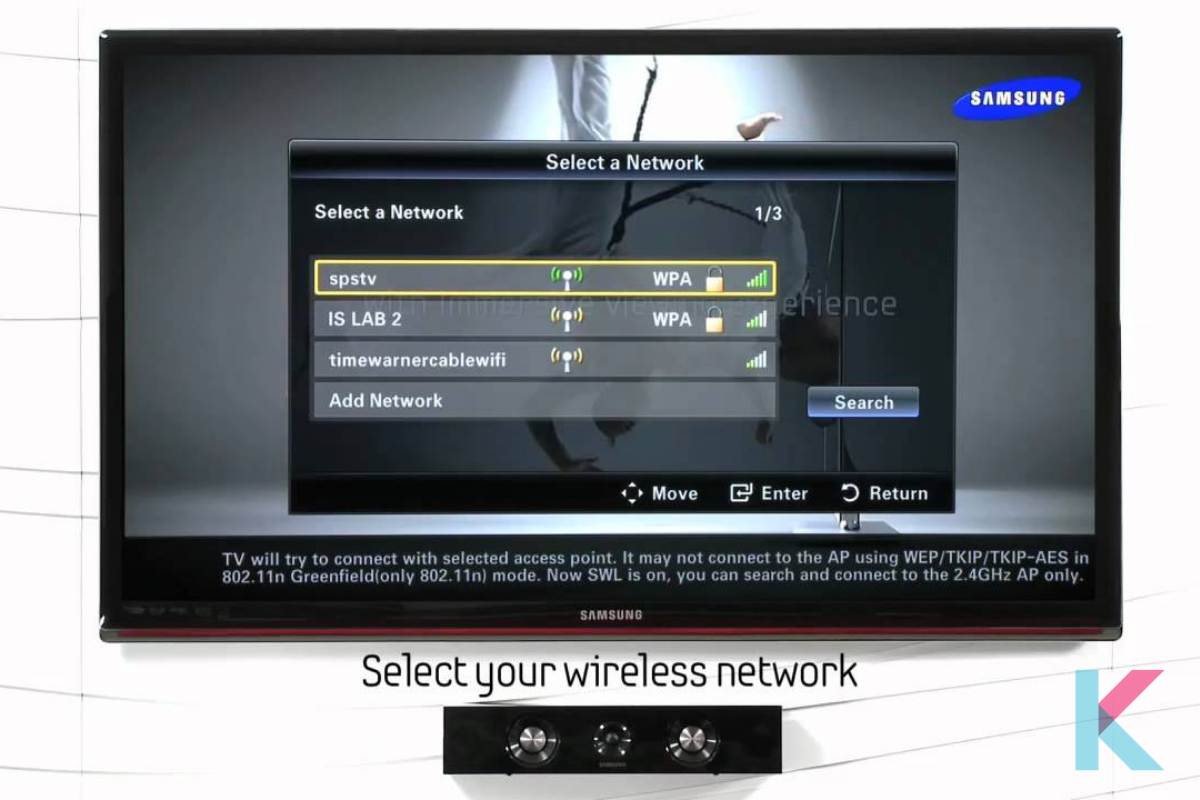
    Step 4 - Choose a wireless network to connect, enter the password and allow time for any updates to be installed.

    Choose a wireless network to connect

    Choose a wireless network to connect

    Step 5 - When asked, sign in with your Amazon account and locate the HDMI port on your television.

    locate the HDMI port on your television

    locate the HDMI port on your television.

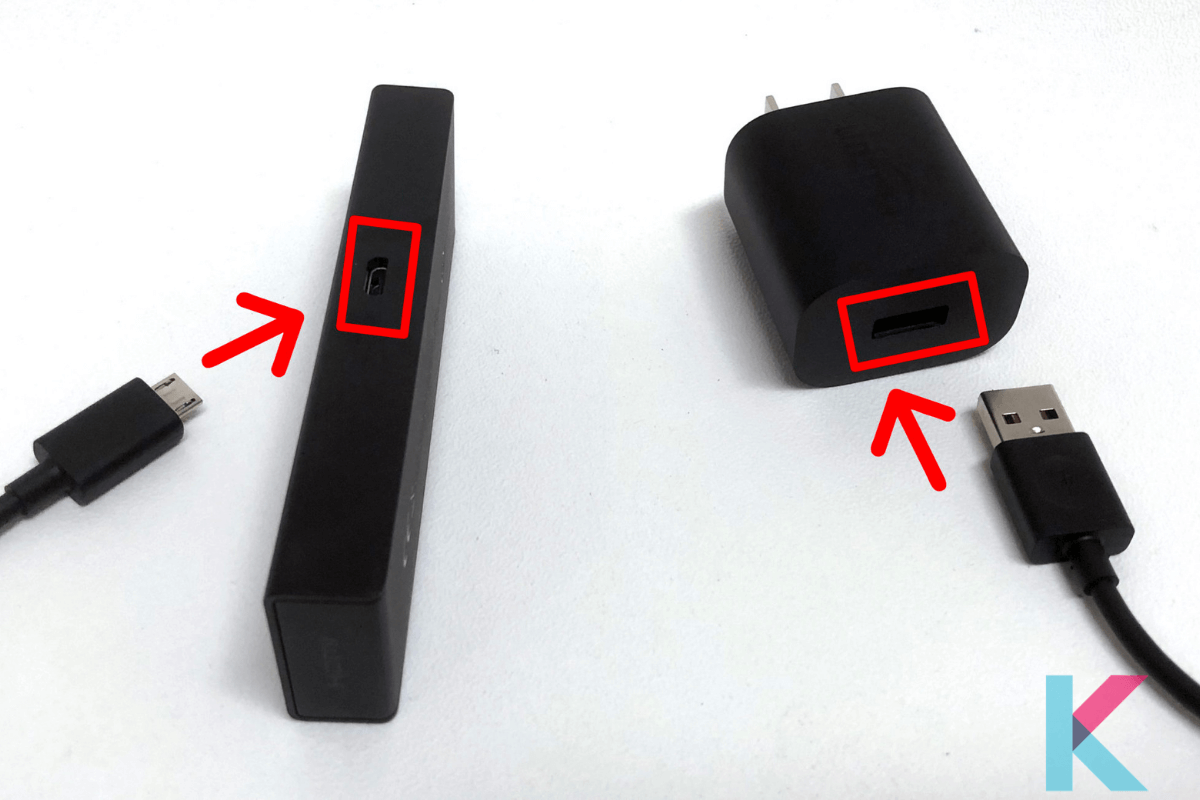
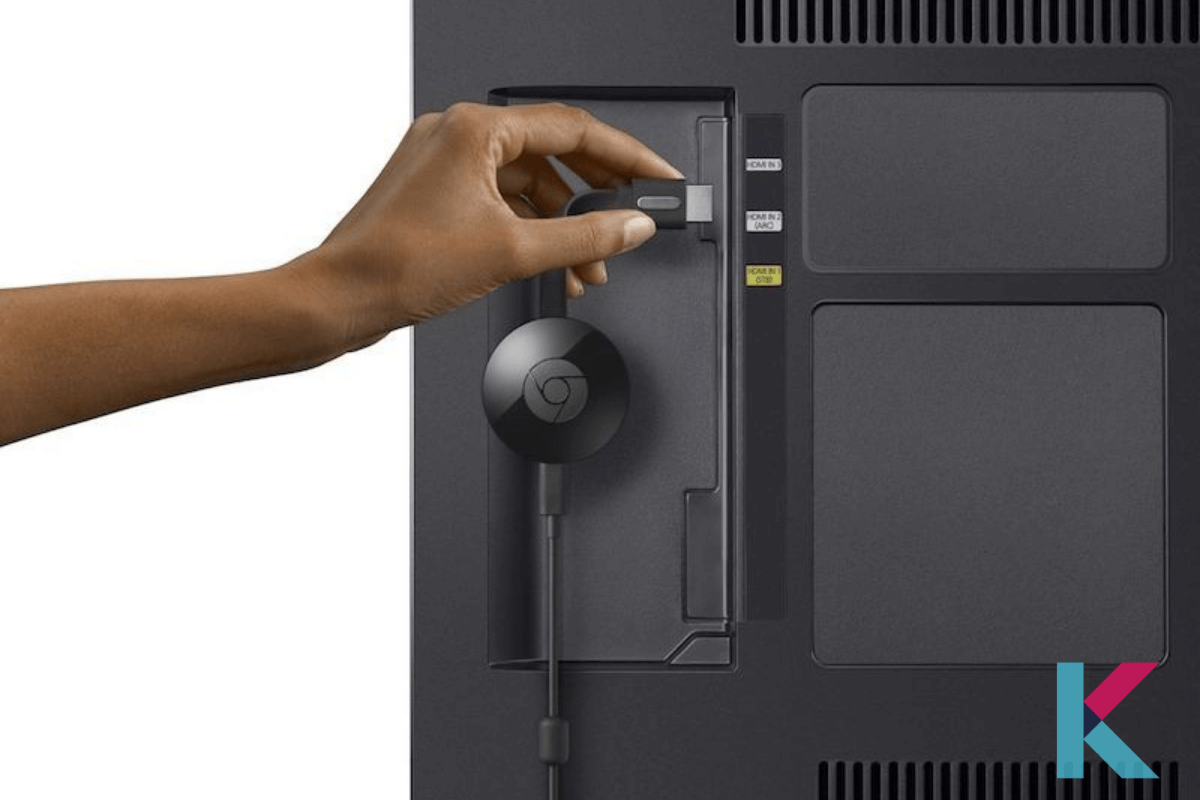
    Step 6 - Connect the Chromecast to the HDMI port on your television and also connect the USB power cable to the device.

    Connect the Chromecast to the HDMI port on your television

    Connect the Chromecast to the HDMI port on your television

    Step 7 - Install the Google Home app on your iPhone or Android device and go to Google Home and open it.

    Install the Google Home app on your iPhone or Android device and go to Google Home and open it

    Install the Google Home app on your iPhone or Android device and go to Google Home and open it

    Step 8 - When asked, choose to ACCEPT and tap the Devices icon and allow time for your Chromecast to recognize your phone. When asked, select Continue.

    Step 9 - Check the code on your television and continue by tapping the Continue button.

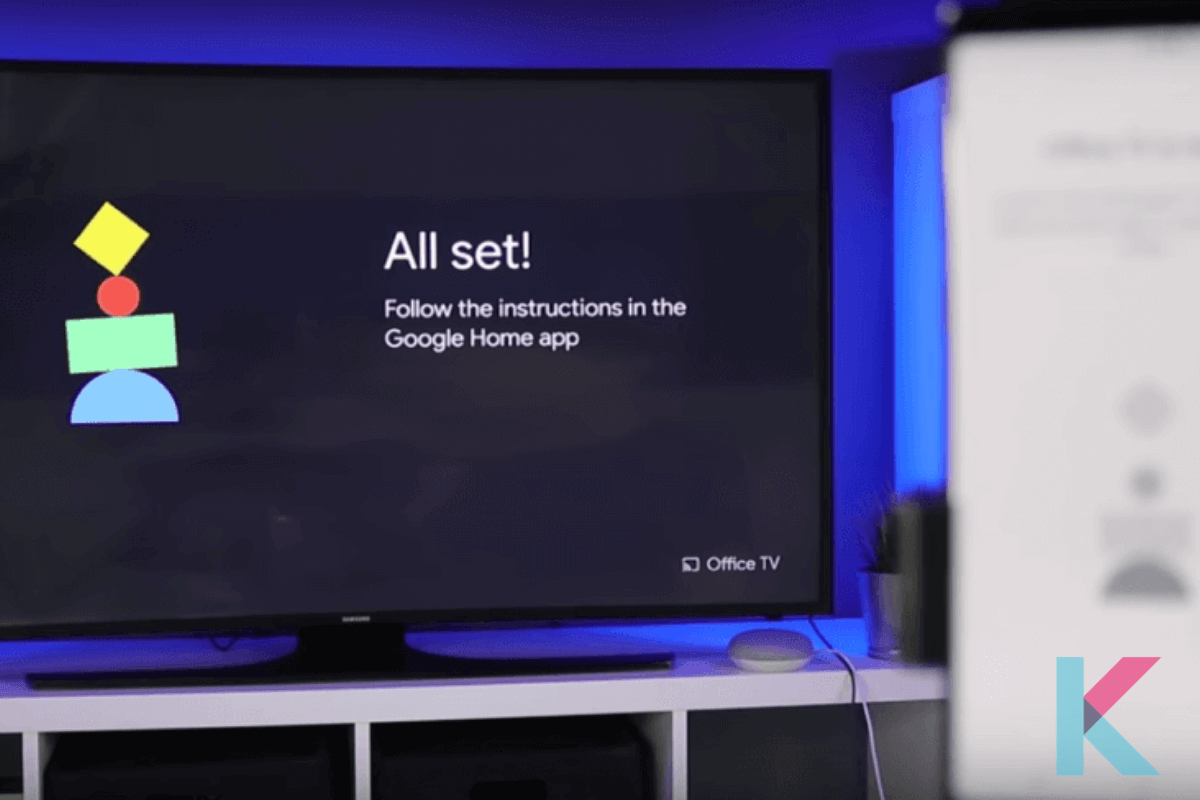
    Step 10 - Choose a wireless network for your Chromecast. As the last step, follow the instructions on the screen and use your Chromecast as if it were a smart television.

    follow the instructions on the screen

    Follow the instructions on the screen

    Amazon Fire Stick [Method 02]

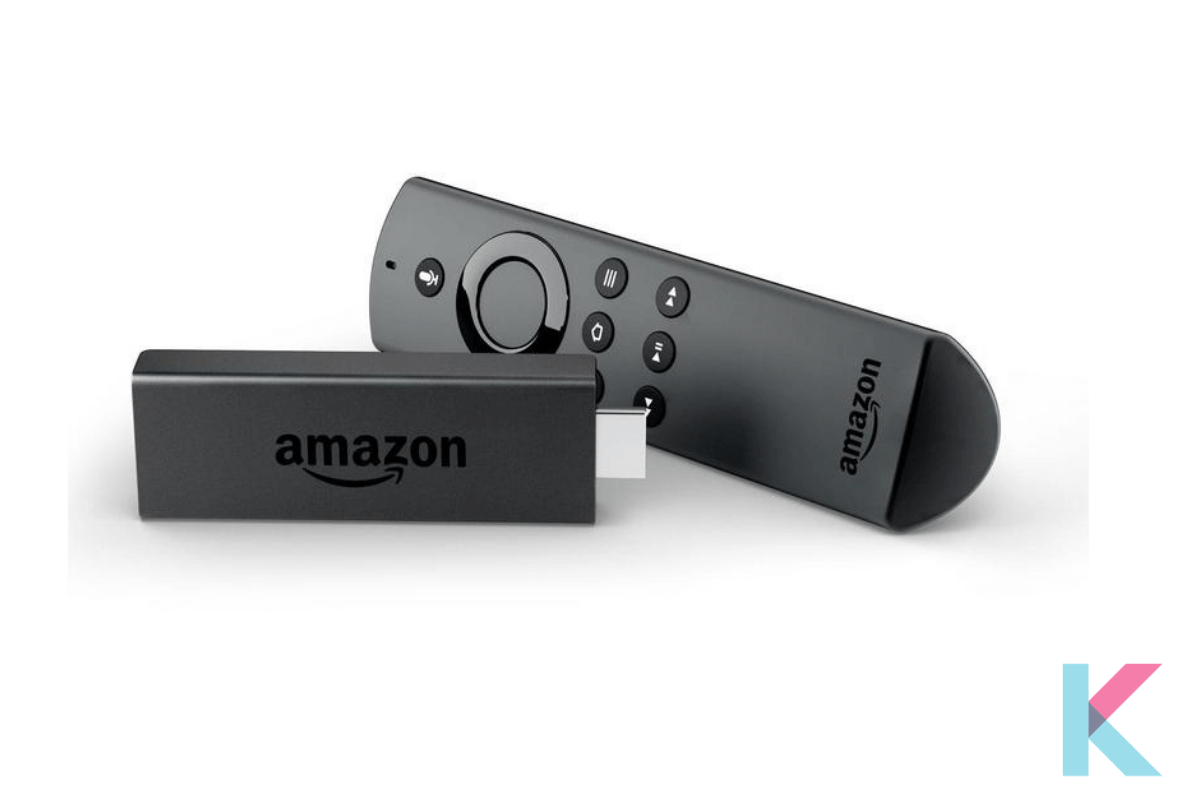
    Amazon Firestick is a streaming system that connects to your TV's HDMI port

    Amazon Fire Stick

    Amazon Firestick is a streaming system that connects to your TV's HDMI port. The Amazon Firestick differs from the Chromecast in that it comes with software pre-installed on the computer. Further, casting is also possible via smartphone, but the same app must be enabled on both your phone and your fire stick. Do you know how to convert your normal TV into Smart TV in South Africa, Australia, and Pakistan? It is the cheapest way to make a TV smart without Chromecast.

    Amazon Fire Stick is available in two models: full HD and 4K. If the OTT app (Netflix, Prime, etc.) and your TV both support 4K, you can stream videos in 4K using the 4K stick. A Prime Video membership is required to stream Prime Video from an Amazon Fire Stick.

    Following are the easy steps to convert your odd TV into Smart TV using Amazon Firestick.

    Step 1 - Locate the HDMI port on your television and connect the Fire Stick to the HDMI port on your TV.

    connect the Fire Stick to the HDMI port on your TV

    connect the Fire Stick to the HDMI port on your TV

    Step 2 - Connect a power outlet to the Fire Stick and also connect the power cable.

    Replace the batteries in the remote control for your Fire Stick

    Replace the batteries in the remote control for your Fire Stick

    Step 3 - Replace the batteries in the remote control for your Fire Stick. Then, switch on the television and press the power button on your television.

    Change the input on your TV to HDMI

    Change the input on your TV to HDMI

    Step 4 - Change the input on your TV to HDMI. When asked, press the "Play/Pause" button. Then, choose a wireless network to connect to and enter the password.

    Choose a wireless network to connect to and enter the password.

    Choose a wireless network to connect to and enter the password.

    Step 5 - Switch on the television and press the power button on your television.

    Airtel Xstreme Stick [Method 03]

    Airtel Xstreme Stick

    Airtel Xstreme Stick

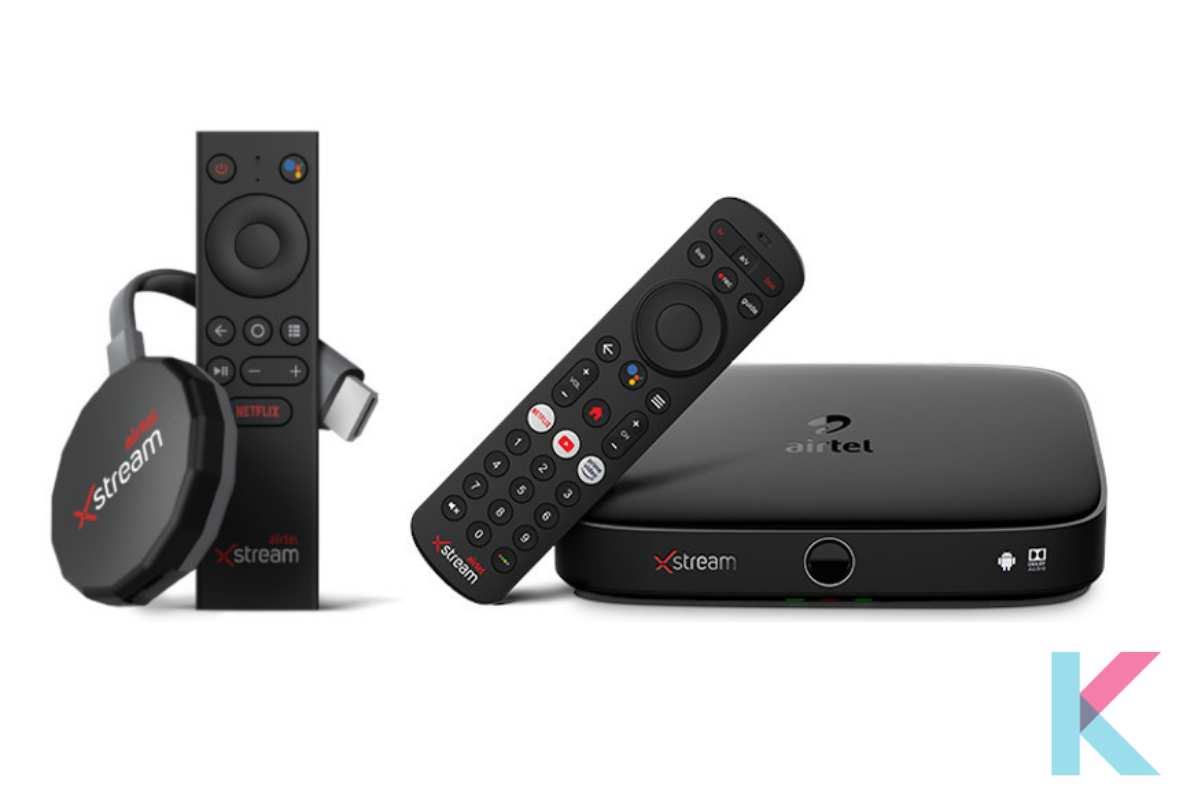
    Airtel recently introduced a streaming device that functions similarly to Chromecast and Firestick. The Airtel Xstreme stick runs Android 8.0 and allows you to download applications from the Google Play Store. This computer comes with the Airtel Xstreme software pre-installed. Previously known as Airtel TV, the app is now known as Airtel Xstreme.

    Many TV shows and series from various platforms, such as Colors, HOOQ, ZEE TV, Sony TV, and thousands of movies, are available on this app. However, live TV is only available via an app and cannot be seen on television. You'll also need an active Xstreme app subscription to use the Xstreme stick.

    The Airtel Xstreme stick includes a voice-activated remote for searching and controlling content on the Stick. This stick also has Chromecast built-in, so you can use your phone to cast apps to your TV.

    What devices turn your TV into Smart TV? How can I turn your Non-smart TV into Smart TV?  Don't worry. You know all the answers now, and you have some idea about how to convert your LED TV or Samsung TV into Smart TV clearly.

    Briefly, you got some idea about these three methods. Smart Televisions have been around for several years and millions of people all over the world already own this device. If you plan to buy a new Television and are wondering whether you should get a Smart TV. As I think, you had better to convert your ordinary TV to Smart TV.

    We hope you enjoyed this article. So, if you're keen to learn more about Smart Home related things, you can visit our Kodmy Smart Home Blog. And, please subscribe to Kodmy using the subscribe button below.

    Blogs

  • How to reset myQ Garage Door Opener?
    S super-admin

    Below is the step-by-step guide to reset myQ smart garage opener.

    Step 1: As the first step, you have to delete the previous program. There’s a setting button at the bottom of the Smart Garage Controller. First, you need to erase the Wi-Fi settings on the controller.

    To erase Wi-Fi settings, the green LED must be turned on or blinking. There’re some buttons on the right-hand side of the controller.

    Step 2: Then, what you want to do is simply press and hold for approximately the setting button until that light goes out. Once your LED goes away all keyless entry codes and remote control will have been successfully deleted.

    Step 3: After that, you need to set up the myQ Garage door opener back to factory default and reconnect your remote control. Press and hold the setting button in the myQ Garage door controller until the blue LED blinks then you can release it.

    Step 4: Once you release the button, you can press and hold the setting button again while the blue LED is blinking until the blue LED pauses and then blinks or beeps. Finally, you can set your myQ Garage door opener to factory default.

    Step 5: As the final step, you need to clear buttons. To do this, you can press and hold the button. Then, you can see a yellow button will turn on. Next, you have to hold this button until the yellow LED turns off.

    Again, you need to press and hold the button until the yellow lights turn on. Now, again hold the button until the yellow LED turns off. You’ll be all set now!

    Blogs
  • Login

  • Don't have an account? Register

  • Login or register to search.
  • First post
    Last post
0
  • Categories
  • Recent
  • Tags
  • Popular
  • World
  • Users
  • Groups